The Admin modules allow you to maintain your organization's resources like Vehicles, Users, and Fleets
¶ Admin Modules
¶ System
 Users Manage the user accounts that can log into the application
Requires an Owner Account or a Standard Account with aUser Managerrole Geofences Create virtual perimeters for important geographic areas
Accessible to any Owner or Standard Account Rules Set rules to identify driving patterns such as entering/exiting a Geofence or Speeding
Requires an Owner Account or a Standard Account with aVehicle Managerrole Tags Create tags to group related vehicles and users
Requires an Owner Account or a Standard Account with aGroup Managerrole
¶ Vehicles


 Fleets Create fleets to group related vehicles together
Requires an Owner Account or a Standard Account with aGroup Managerrole Vehicles Manage your organization's vehicles
Requires an Owner Account or a Standard Account with aVehicle Managerrole IO Profiles Map vehicle inputs to meaningful descriptions
Requires an Owner Account or a Standard Account with aVehicle Managerrole
¶ Common Functions
The layout and controls for basic functions are similar across all Admin pages.
¶ Add
Click the Add button to create a new resource:

A popup will be displayed with the minimal fields required to add a resource.
Once a resource is added, a more detailed popup will automatically be displayed showing other properties that can be updated for that resource.
¶ Edit
Click the Edit button in the last column to edit the properties of an existing resource:

A popup will be displayed with properties that can be updated for that resource.
¶ Delete
Click the Delete button in the last column to delete an existing resource:

Alternatively if you want to delete multiple items at the same time, first use the checkboxes to select the items you want to delete:
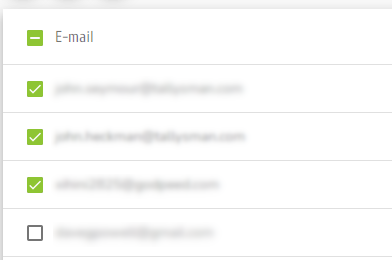
Then click the Delete button at the top of the page

¶ Refresh
Click the Refresh button to reload the list of displayed items:

¶ Filter
Use the Search Bar to filter by any property that appears on the page:

You must enter a minimum of 2 characters to filter by
¶ Sort
To sort by a column, click on the column header:

The sort will be in ascending order by default:

Click again to sort in descending order:
